Application Development with Flask Appbuilder
- Authors
- Name
- Andy Cao


Table of content
Introduction
Flask AppBuilder simplifies the process of building web applications with Flask by providing ready-to-use scaffolding. Here is a short summary of how I build and deploy Flask AppBuilder web application in the cloud. The article how serve a record of the steps I took to build and deploy a Flask AppBuilder web application in the cloud. It is the key packages used in some of the widely used python applications such as Apache's superset and airflow.
Getting Started
Firstly, ensure you have Python installed on your system. Flask AppBuilder, being a Python framework, requires Python. You can check your Python version by running python --version in your terminal. If you need to install Python, visit the official Python website.
Setting Up Your Project
Create a Virtual Environment
Before we dive into the Flask world, it's a good practice to create a virtual environment. This isolates your project dependencies from others. To create a virtual environment, run:python -m venv venvActivate it with:
- On Windows:
. venv\Scripts\activate - On macOS/Linux:
source venv/bin/activate
- On Windows:
Install Flask AppBuilder
With your virtual environment activated, install Flask AppBuilder using pip:pip install flask-appbuilder
Building Your Application
Flask AppBuilder makes it straightforward to set up your project structure. Follow these steps to initialise your application:
Initialise Your Project
Run the following command to start your project:flask fab create-appThis command prompts you to name your project and creates a basic structure for your application.
Explore the Generated Structure
Take a moment to explore the generated files. You'll find a directory named after your project with some Python files and folders inside. This structure is your starting point.Customise Your Application
Dive into themodels.pyfile to define your data models. Flask AppBuilder uses SQLAlchemy for ORM, so you can easily define your models with Python classes.Add Views
To add views to your application, edit theviews.pyfile. Flask AppBuilder supports a variety of view types, from simple CRUD interfaces to more complex views.

- Run Your Application
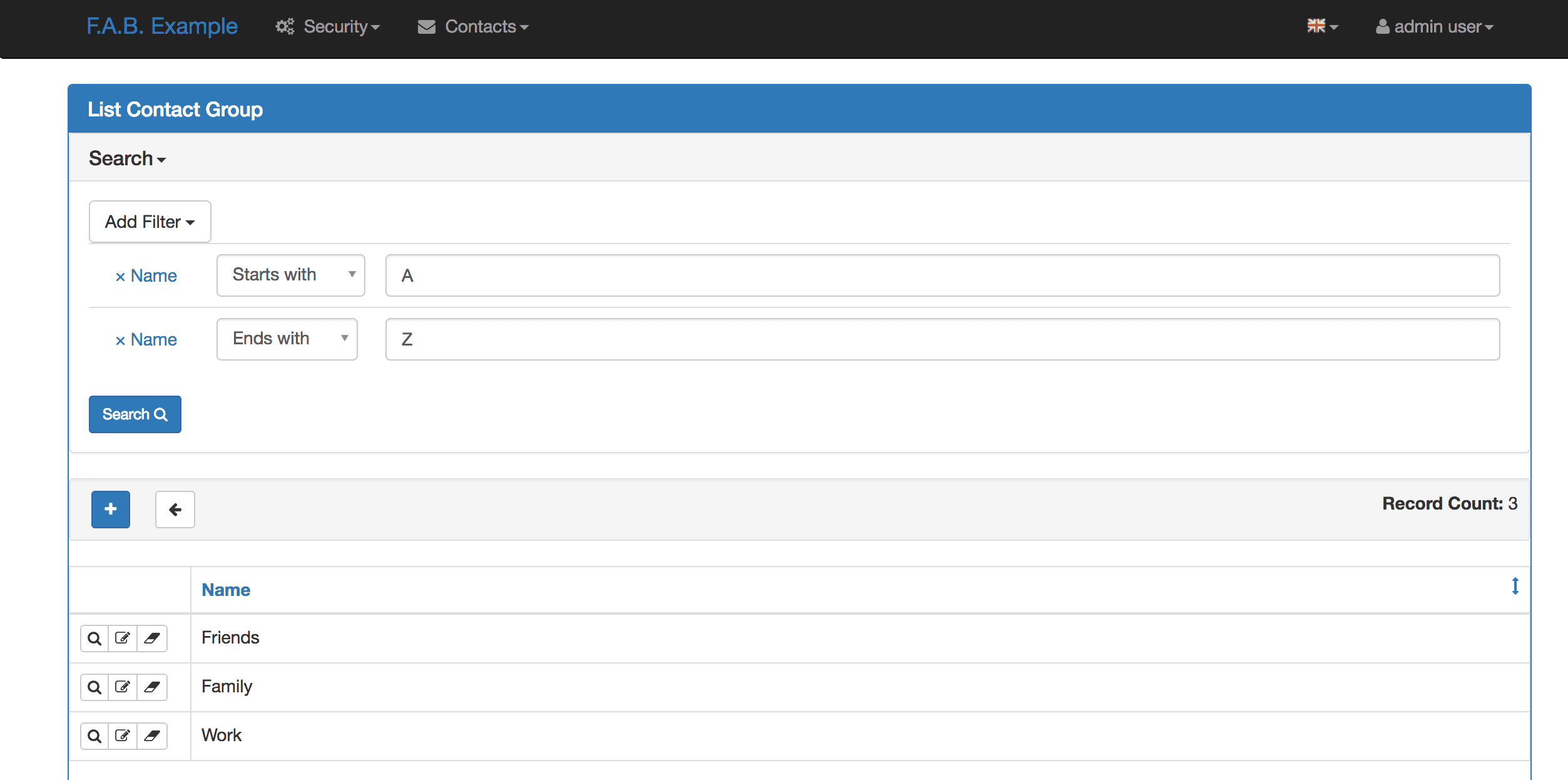
To see your application in action, run:Visitflask runhttp://127.0.0.1:5000/in your browser to see your Flask AppBuilder application running.
Deploying Application
Deploying your application makes it accessible on the Internet. There are various platforms for deploying Flask applications. Below, we cover deployment processes for Heroku and Azure.
Deploying to Heroku
Prepare Your Application for Heroku
Create aProcfilein your project root and add the following line:web: flask runThis tells Heroku how to run your application.
Deploy to Heroku
If you haven't already, install the Heroku CLI and log in to your Heroku account. Then, create a Heroku app withheroku createand deploy your application using Git.git add . git commit -m "Initial commit" git push heroku masterVisit Your Deployed Application
After deployment, Heroku provides you with a URL to access your application. Open it in your browser to see your Flask AppBuilder app live!
Deploying to Azure
Prepare Your Application for Azure
Ensure your application is ready for deployment by confirming that it runs locally without any issues. Also, make sure your project includes arequirements.txtfile that Azure can use to install your dependencies.Create a Web App on Azure App Service
Log in to the Azure Portal and create a new Web App. Specify your subscription, resource group, name for the web app, runtime stack (choose Python), region, and an App Service plan.Configure Deployment Source
In the Deployment Centre, set up your source control by connecting to your GitHub, Bitbucket, Local Git, or other repositories. Azure supports various continuous integration options.Configure Application Settings
Set the startup command for your Flask app in the Application Settings:gunicorn -w 4 -b 0.0.0.0:8000 your_application:appReplace
your_applicationwith the name of your Python file that creates your Flask app.Deploy Your Application
Push your code to the connected repository or use FTP to upload your files directly to Azure. Once your code is pushed, Azure will automatically deploy the new version similar to how Heroklu works.